AIアシスタント向けドキュメント処理のスーパーパワー
Connect AI agents to Documentize with MCP
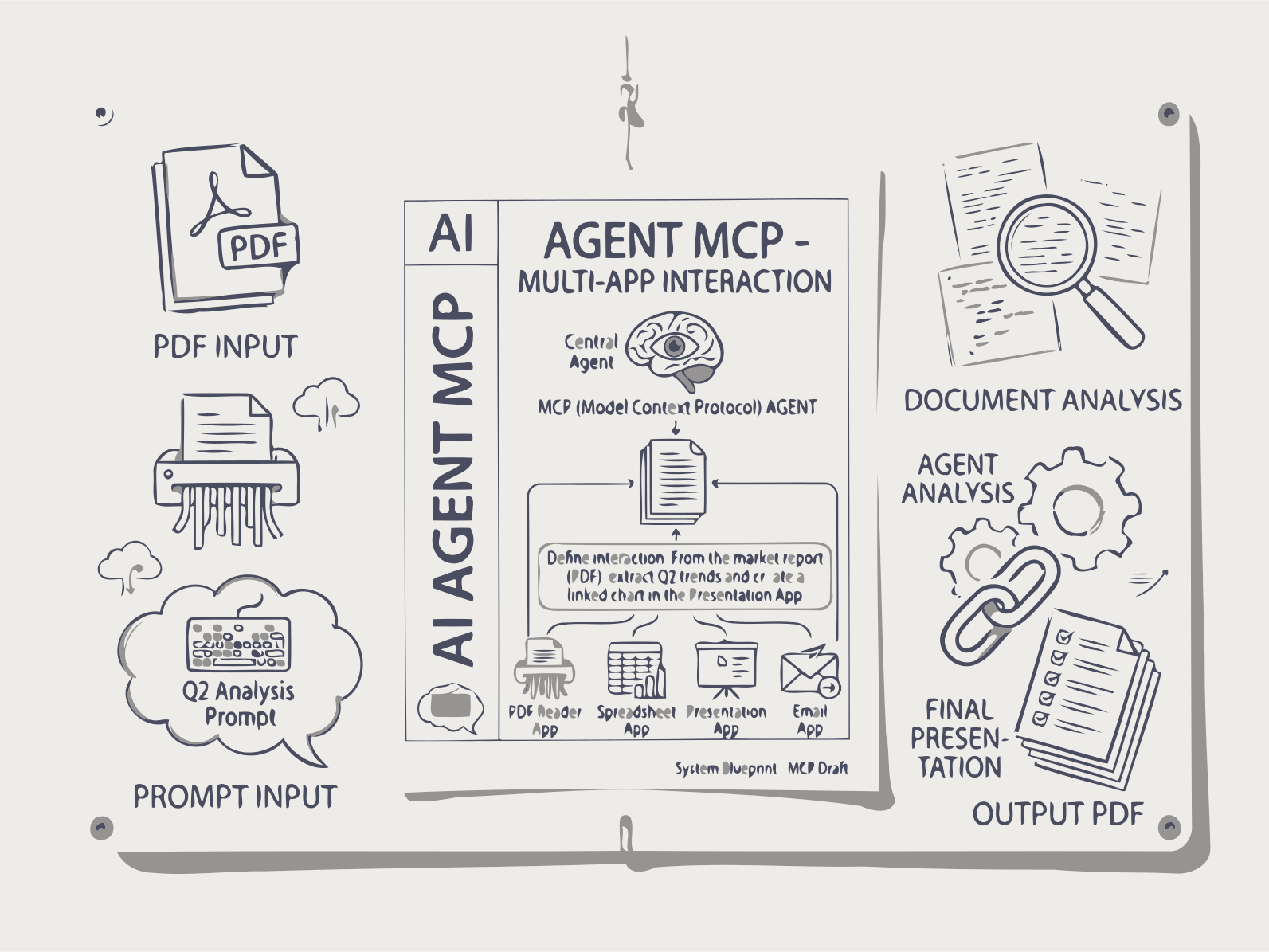
The Documentize MCP server exposes all document processing capabilities as tools for AI agents and LLM clients — convert, merge, extract, sign, and more, directly from Claude Desktop, VS Code Copilot, Cursor, or any MCP-compatible host.
🔑 Your MCP key
Requests from an MCP client count against your account the same way work you do on the website does. Without a key the server treats the client as an anonymous visitor and applies the anonymous daily limit.
Clients that support MCP's OAuth flow (protected-resource metadata, RFC 9728) can skip keys entirely — they discover the login page from the server and sign you in through the browser. Keys remain the way to connect scripts and clients without OAuth support.
No account needed to try this out — Create key below issues a free trial key on the spot, at the same limits as a free account. Sign in (top of the page) to list or revoke keys later, or to upgrade to a paid plan for full limits.
Copy this key now — it is stored only as a hash and cannot be shown again.
Paste it into your client config as an Authorization header:
This is a free trial key — it works at the same limits as a free account. Sign in to keep it listed for later, or upgrade to a paid plan for full limits.
Existing keys
| Label | Key | Created | Last used |
|---|
⚡ Endpoint
The MCP server runs over Streamable HTTP at:
https://api.documentize.app/mcpThe server uses stateful sessions. After the initial initialize request the server returns an Mcp-Session-Id header; include it in every subsequent request. MCP clients handle this automatically.
🔌 Connect from Claude Desktop
Add the server to claude_desktop_config.json (%APPDATA%\Claude\ on Windows, ~/Library/Application Support/Claude/ on macOS):
{
  "mcpServers": {
    "documentize": {
      "type": "http",
      "url": "https://api.documentize.app/mcp",
      "headers": {
        "Authorization": "Bearer dmk_your_key_here"
      }
    }
  }
}
Restart Claude Desktop. The Documentize tools will appear in the tool list. Omit the headers block to connect anonymously — the tools still work, but under the anonymous daily limit.
🔌 Connect from VS Code (GitHub Copilot)
Create .vscode/mcp.json in your workspace (or add to User Settings):
{
  "servers": {
    "documentize": {
      "type": "http",
      "url": "https://api.documentize.app/mcp",
      "headers": {
        "Authorization": "Bearer dmk_your_key_here"
      }
    }
  }
}
Open GitHub Copilot Chat, switch to Agent mode, and click the Tools button — Documentize tools will be listed there.
🔌 Connect from Cursor / Cline
In Cursor, open Settings → MCP and add a new server:
{
  "name": "documentize",
  "type": "http",
  "serverUrl": "https://api.documentize.app/mcp"
}
Cline users can add the same entry under MCP Servers in its settings panel.
⚙️ How tasks work
All processing tools are asynchronous. Each call starts a background job and returns a JSON object with a folderName field — that is your task ID.
- Call a processing tool (e.g.
ConvertDocument) → receive a task ID (folderName). - Call
GetTaskStatuswith that task ID and poll untilstatusCodeis 200. - When complete, the response contains a
sharedFilesarray. Each entry has afileName(display name) and anuploadFileName(a pre-signed S3 download URL). Open anyuploadFileNameURL in your browser to download the result file.
// 1. Start a task
ConvertDocument(fileUrl: "C:\\Users\\Alice\\Documents\\report.pdf",
                inputType: "pdf", outputType: "docx")
// → { "folderName": "abc123", "statusCode": 204 }

// 2. Poll until done (statusCode 204/202/203 = still processing)
GetTaskStatus(taskId: "abc123")
// → {
//     "statusCode": 200,
//     "sharedFiles": [
//       {
//         "fileName": "report.docx",
//         "uploadFileName": "https://s3.amazonaws.com/...presigned-url..."
//       }
//     ]
//   }

// 3. Download the result
// Open uploadFileName in a browser, or tell the agent:
//   "Download https://s3.amazonaws.com/...presigned-url... and save it as report.docx"
Use GetNextAppSuggestions after any operation to get recommended follow-up tools based on the output format.
📂 Providing your files
Most users are pointing the agent at a file on their own machine, so lead with that — a plain local path or a file:// URI works directly, no upload step required. The server also accepts remote URLs when that's where the file actually lives.
Local file path (most common)
File paths are resolved by the server, not by the client. They work whenever the MCP server can see the path you give it — Documentize SelfHost, a local development instance, or an agent running alongside the server. Just point it at the file:
// Windows absolute path
ConvertDocument(fileUrl: "C:\\Users\\Alice\\Documents\\report.pdf",
                inputType: "pdf", outputType: "docx")

// macOS / Linux absolute path
ConvertDocument(fileUrl: "/home/alice/documents/report.pdf",
                inputType: "pdf", outputType: "docx")
You can also use the standard file:// URI format:
// file:// URI — Windows
ConvertDocument(fileUrl: "file:///C:/Users/Alice/Documents/report.pdf",
                inputType: "pdf", outputType: "docx")

// file:// URI — macOS / Linux
ConvertDocument(fileUrl: "file:///home/alice/documents/report.pdf",
                inputType: "pdf", outputType: "docx")
Remote URL
Pass any publicly accessible https:// or http:// URL instead, and the server fetches the file automatically before processing.
ConvertDocument(fileUrl: "https://example.com/report.pdf",
                inputType: "pdf", outputType: "docx")
Supported file-source schemes
The server recognizes these URL schemes for fileUrl / fileUrls — anything else is rejected before a task is started:
private static readonly HashSet<string> SupportedSchemes = new(StringComparer.OrdinalIgnoreCase)
{
    "http", "https", "ftp", "ftps", "file", "local"
};file/local— a path on disk, either as a bare path (C:\...,/home/...) or afile://URI.http/https— a remote URL the server downloads before processing.ftp/ftps— a file served from an FTP/FTPS host.
Practical agent prompts
Refer to files the way you naturally would — a path on your machine works directly:
// In Claude Desktop or Cursor chat:
"Convert my file C:\Users\Alice\Downloads\invoice.pdf to Word format"

"Compress file:///home/alice/documents/thesis.pdf and send me the download link"

"Extract all the text from /home/alice/documents/Q1.pdf"
If the file isn't local — it's already hosted somewhere — pass its URL instead: "Convert https://example.com/invoice.pdf to Word format".
👤 Accounts, limits & quotas
Usage is metered per account, and an MCP client is metered exactly like the website: one operation = one processing call, whatever the file count. Checking task status and asking about your own account are free.
| Tier | Who | Operations / day |
|---|---|---|
| anonymous | No Authorization header | 3 — enough to try a tool, not to work |
| free | Registered account, no subscription | 5, resets midnight UTC |
| paid | Active subscription | Unlimited — the tier built for bulk and unattended agents |
Three tools let an agent manage this itself. None of them consume quota:
- GetAccountStatus — current tier, plan, operations used and remaining, reset time, and the safe parallelism for batch work.
- GetSignInInstructions — the exact steps to register, issue a key, and configure the client. The agent relays these to you; it cannot sign in on your behalf.
- SignOut — how to disconnect. Pass
revokeKey: trueto also revoke the key this connection uses (permanent, and it breaks every client sharing that key).
A healthy, signed-in connection looks like this:
GetAccountStatus()
// → {
//     "ok": true,
//     "account": {
//       "authenticated": true,
//       "authMethod": "mcp_key",
//       "credentialRejected": false,
//       "tier": "paid",
//       "plan": "Business",
//       "unlimited": true,
//       "maxParallelRequests": 8
//     },
//     "advice": "Unlimited plan. Mass processing is supported; use ProcessBatch
//                with up to 8 parallel requests."
//   }
A free account running low looks like this:
GetAccountStatus()
// → {
//     "account": {
//       "authenticated": true, "tier": "free", "unlimited": false,
//       "used": 4, "limit": 5, "remaining": 1,
//       "resetsAtUtc": "2026-08-28T00:00:00Z",
//       "maxParallelRequests": 2
//     },
//     "advice": "1 of 5 operations left today (resets 2026-08-28 00:00:00Z)..."
//   }
When a call is refused
Refusals come back as a structured object with a machine-readable error and a nextStep for the agent to follow, so it stops instead of retrying blindly. Each code means something different:
error | What happened | What to do |
|---|---|---|
credential_rejected | The key in your client config was revoked, deleted or mistyped, and the connection silently fell back to anonymous. | Issue a new key above, replace it in the config, restart the client. Retrying will not help. |
auth_required | Anonymous allowance spent. | Sign in and add a key — the agent can read you the steps. |
quota_exceeded | Signed in, but out of operations for today. | Wait for retryAfterUtc (midnight UTC), or subscribe. |
billing_unavailable | Subscription service unreachable. | Nothing — advisory only. The work was still accepted. |
// Example refusal — note that it is explicitly not retryable
CompressDocument(fileUrl: "C:\\Users\\Alice\\Documents\\big.pdf")
// → {
//     "ok": false,
//     "error": "credential_rejected",
//     "statusCode": 401,
//     "message": "The Documentize API key in this MCP client's configuration was
//                 refused — it has been revoked, deleted, or was copied incorrectly...",
//     "nextStep": "Tell the user to sign in ... issue a new one, and replace the value
//                  in this MCP client's configuration (then restart the client).",
//     "retryable": false
//   }
Claude、Cursor、または任意のMCP互換クライアントを自然言語で28以上のドキュメントツールに接続する。
Claude、Cursor、またはMCP対応クライアントを28以上の文書ツールに接続します。変換、圧縮、署名、テキスト抽出、OCR実行、AI要約の生成をすべて自然言語で行えます。
Documentize MCP の仕組み
1. MCPクライアントに接続する
Documentize MCPサーバーをClaude Desktop、Cursor、VS Code、またはMCP互換クライアントに追加します。設定は1行です。
2. セッションの初期化
クライアントは自動的に初期化リクエストを送信し、セッションIDを取得します。その後のすべての呼び出しはこのセッションを追跡に使用します(使用量ベースのマネタイズに最適)。
3. 自然に質問する
「このPDFをDOCXに変換してください」— AIアシスタントがドキュメントを使って適切なツールを呼び出します。APIドキュメントは不要です。
4. 結果を取得
サーバーは非同期で処理し、ステータスをポーリングし、変換されたドキュメントまたは抽出されたデータを直接AIアシスタントに配信します。
FAQs
AI MCPサーバー
階層化されたSVGアーキテクチャ
各 SVG は、背景層、ミッドグラウンド層、前景層で構成され、Z インデックス順序と依存関係の追跡が行われます。AI はレイヤー間の関係を管理し、パフォーマンスの低いレイヤーを自動的に削除して、出力をクリーンで一貫性のあるものに保ちます。
反復的 SVG 編集
継続的な AI チャットを通じて SVG デザインを改善・修正します。
高速ベクトル作成
数秒でアイコン、ロゴ、イラストを作成できます。