Need this in your own application? The full Documentize product family for C#/.NET.
Licensing Documentize

Siêu năng lực Xử lý Tài liệu cho Trợ lý AI của bạn

Connect AI agents to Documentize with MCP

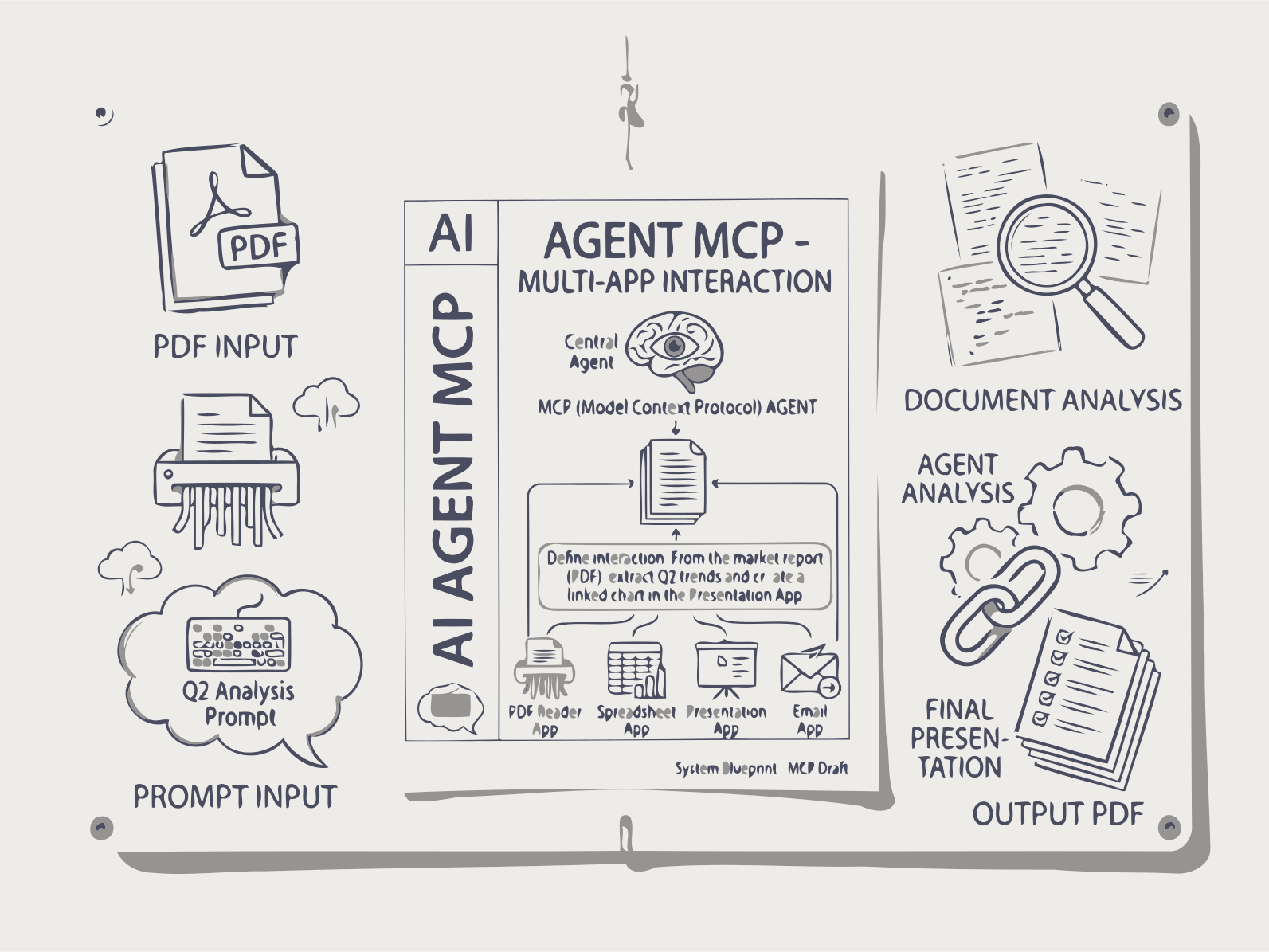
The Documentize MCP server exposes all document processing capabilities as tools for AI agents and LLM clients — convert, merge, extract, sign, and more, directly from Claude Desktop, VS Code Copilot, Cursor, or any MCP-compatible host.

🔑 Your MCP key

Requests from an MCP client count against your account the same way work you do on the website does. Without a key the server treats the client as an anonymous visitor and applies the anonymous daily limit.

Clients that support MCP's OAuth flow (protected-resource metadata, RFC 9728) can skip keys entirely — they discover the login page from the server and sign you in through the browser. Keys remain the way to connect scripts and clients without OAuth support.

No account needed to try this out — Create key below issues a free trial key on the spot, at the same limits as a free account. Sign in (top of the page) to list or revoke keys later, or to upgrade to a paid plan for full limits.

Copy this key now — it is stored only as a hash and cannot be shown again.

Paste it into your client config as an Authorization header:

This is a free trial key — it works at the same limits as a free account. Sign in to keep it listed for later, or upgrade to a paid plan for full limits.

Existing keys

LabelKeyCreatedLast used

⚡ Endpoint

The MCP server runs over Streamable HTTP at:

https://api.documentize.app/mcp

The server uses stateful sessions. After the initial initialize request the server returns an Mcp-Session-Id header; include it in every subsequent request. MCP clients handle this automatically.

🔌 Connect from Claude Desktop

Add the server to claude_desktop_config.json (%APPDATA%\Claude\ on Windows, ~/Library/Application Support/Claude/ on macOS):

{
  "mcpServers": {
    "documentize": {
      "type": "http",
      "url": "https://api.documentize.app/mcp",
      "headers": {
        "Authorization": "Bearer dmk_your_key_here"
      }
    }
  }
}

Restart Claude Desktop. The Documentize tools will appear in the tool list. Omit the headers block to connect anonymously — the tools still work, but under the anonymous daily limit.

🔌 Connect from VS Code (GitHub Copilot)

Create .vscode/mcp.json in your workspace (or add to User Settings):

{
  "servers": {
    "documentize": {
      "type": "http",
      "url": "https://api.documentize.app/mcp",
      "headers": {
        "Authorization": "Bearer dmk_your_key_here"
      }
    }
  }
}

Open GitHub Copilot Chat, switch to Agent mode, and click the Tools button — Documentize tools will be listed there.

🔌 Connect from Cursor / Cline

In Cursor, open Settings → MCP and add a new server:

{
  "name": "documentize",
  "type": "http",
  "serverUrl": "https://api.documentize.app/mcp"
}

Cline users can add the same entry under MCP Servers in its settings panel.

⚙️ How tasks work

All processing tools are asynchronous. Each call starts a background job and returns a JSON object with a folderName field — that is your task ID.

  1. Call a processing tool (e.g. ConvertDocument) → receive a task ID (folderName).
  2. Call GetTaskStatus with that task ID and poll until statusCode is 200.
  3. When complete, the response contains a sharedFiles array. Each entry has a fileName (display name) and an uploadFileName (a pre-signed S3 download URL). Open any uploadFileName URL in your browser to download the result file.
// 1. Start a task
ConvertDocument(fileUrl: "C:\\Users\\Alice\\Documents\\report.pdf",
                inputType: "pdf", outputType: "docx")
// → { "folderName": "abc123", "statusCode": 204 }

// 2. Poll until done (statusCode 204/202/203 = still processing)
GetTaskStatus(taskId: "abc123")
// → {
//     "statusCode": 200,
//     "sharedFiles": [
//       {
//         "fileName": "report.docx",
//         "uploadFileName": "https://s3.amazonaws.com/...presigned-url..."
//       }
//     ]
//   }

// 3. Download the result
// Open uploadFileName in a browser, or tell the agent:
//   "Download https://s3.amazonaws.com/...presigned-url... and save it as report.docx"

Use GetNextAppSuggestions after any operation to get recommended follow-up tools based on the output format.

📂 Providing your files

Most users are pointing the agent at a file on their own machine, so lead with that — a plain local path or a file:// URI works directly, no upload step required. The server also accepts remote URLs when that's where the file actually lives.

Local file path (most common)

File paths are resolved by the server, not by the client. They work whenever the MCP server can see the path you give it — Documentize SelfHost, a local development instance, or an agent running alongside the server. Just point it at the file:

// Windows absolute path
ConvertDocument(fileUrl: "C:\\Users\\Alice\\Documents\\report.pdf",
                inputType: "pdf", outputType: "docx")

// macOS / Linux absolute path
ConvertDocument(fileUrl: "/home/alice/documents/report.pdf",
                inputType: "pdf", outputType: "docx")

You can also use the standard file:// URI format:

// file:// URI — Windows
ConvertDocument(fileUrl: "file:///C:/Users/Alice/Documents/report.pdf",
                inputType: "pdf", outputType: "docx")

// file:// URI — macOS / Linux
ConvertDocument(fileUrl: "file:///home/alice/documents/report.pdf",
                inputType: "pdf", outputType: "docx")

Remote URL

Pass any publicly accessible https:// or http:// URL instead, and the server fetches the file automatically before processing.

ConvertDocument(fileUrl: "https://example.com/report.pdf",
                inputType: "pdf", outputType: "docx")

Supported file-source schemes

The server recognizes these URL schemes for fileUrl / fileUrls — anything else is rejected before a task is started:

private static readonly HashSet<string> SupportedSchemes = new(StringComparer.OrdinalIgnoreCase)
{
    "http", "https", "ftp", "ftps", "file", "local"
};
  • file / local — a path on disk, either as a bare path (C:\..., /home/...) or a file:// URI.
  • http / https — a remote URL the server downloads before processing.
  • ftp / ftps — a file served from an FTP/FTPS host.

Practical agent prompts

Refer to files the way you naturally would — a path on your machine works directly:

// In Claude Desktop or Cursor chat:
"Convert my file C:\Users\Alice\Downloads\invoice.pdf to Word format"

"Compress file:///home/alice/documents/thesis.pdf and send me the download link"

"Extract all the text from /home/alice/documents/Q1.pdf"

If the file isn't local — it's already hosted somewhere — pass its URL instead: "Convert https://example.com/invoice.pdf to Word format".

👤 Accounts, limits & quotas

Usage is metered per account, and an MCP client is metered exactly like the website: one operation = one processing call, whatever the file count. Checking task status and asking about your own account are free.

TierWhoOperations / day
anonymousNo Authorization header3 — enough to try a tool, not to work
freeRegistered account, no subscription5, resets midnight UTC
paidActive subscriptionUnlimited — the tier built for bulk and unattended agents

Three tools let an agent manage this itself. None of them consume quota:

  • GetAccountStatus — current tier, plan, operations used and remaining, reset time, and the safe parallelism for batch work.
  • GetSignInInstructions — the exact steps to register, issue a key, and configure the client. The agent relays these to you; it cannot sign in on your behalf.
  • SignOut — how to disconnect. Pass revokeKey: true to also revoke the key this connection uses (permanent, and it breaks every client sharing that key).

A healthy, signed-in connection looks like this:

GetAccountStatus()
// → {
//     "ok": true,
//     "account": {
//       "authenticated": true,
//       "authMethod": "mcp_key",
//       "credentialRejected": false,
//       "tier": "paid",
//       "plan": "Business",
//       "unlimited": true,
//       "maxParallelRequests": 8
//     },
//     "advice": "Unlimited plan. Mass processing is supported; use ProcessBatch
//                with up to 8 parallel requests."
//   }

A free account running low looks like this:

GetAccountStatus()
// → {
//     "account": {
//       "authenticated": true, "tier": "free", "unlimited": false,
//       "used": 4, "limit": 5, "remaining": 1,
//       "resetsAtUtc": "2026-08-28T00:00:00Z",
//       "maxParallelRequests": 2
//     },
//     "advice": "1 of 5 operations left today (resets 2026-08-28 00:00:00Z)..."
//   }

When a call is refused

Refusals come back as a structured object with a machine-readable error and a nextStep for the agent to follow, so it stops instead of retrying blindly. Each code means something different:

errorWhat happenedWhat to do
credential_rejectedThe key in your client config was revoked, deleted or mistyped, and the connection silently fell back to anonymous.Issue a new key above, replace it in the config, restart the client. Retrying will not help.
auth_requiredAnonymous allowance spent.Sign in and add a key — the agent can read you the steps.
quota_exceededSigned in, but out of operations for today.Wait for retryAfterUtc (midnight UTC), or subscribe.
billing_unavailableSubscription service unreachable.Nothing — advisory only. The work was still accepted.
// Example refusal — note that it is explicitly not retryable
CompressDocument(fileUrl: "C:\\Users\\Alice\\Documents\\big.pdf")
// → {
//     "ok": false,
//     "error": "credential_rejected",
//     "statusCode": 401,
//     "message": "The Documentize API key in this MCP client's configuration was
//                 refused — it has been revoked, deleted, or was copied incorrectly...",
//     "nextStep": "Tell the user to sign in ... issue a new one, and replace the value
//                  in this MCP client's configuration (then restart the client).",
//     "retryable": false
//   }
📦 Mass processing

A subscription removes the daily cap, so the real limit on bulk work is round trips: pushing 200 files through ConvertDocument costs 200 turns of the agent's attention, and any one of them can derail the run. Two tools collapse that into two calls.

  1. ProcessBatch — one operation, many files. Submits them concurrently server-side (8 at a time on an unlimited plan, 2 otherwise), up to 200 files per call, and returns one task ID per file.
  2. WaitForTasks — polls all of those task IDs server-side and returns every download link at once. Free, and it hands back any still-pending IDs at the timeout so a long run resumes instead of restarting.

ListBatchOperations returns the supported operation names and their parameters — the agent should call it rather than guess.

// 1. Submit 3 files (a real batch would be hundreds)
ProcessBatch(operation: "convert",
             fileUrls: "C:\\Docs\\a.pdf,C:\\Docs\\b.pdf,C:\\Docs\\c.pdf",
             parametersJson: "{\"inputType\":\"pdf\",\"outputType\":\"docx\"}")
// → {
//     "ok": true, "operation": "convert",
//     "requested": 3, "submittedCount": 3, "failedCount": 0,
//     "parallelism": 8,
//     "taskIds": ["abc123", "def456", "ghi789"],
//     "nextStep": "Call WaitForTasks with taskIds to collect the download links..."
//   }

// 2. Collect every result in one call
WaitForTasks(taskIds: "abc123,def456,ghi789", timeoutSeconds: 300)
// → {
//     "ok": true, "total": 3, "completedCount": 3, "pendingCount": 0,
//     "completed": [
//       { "taskId": "abc123",
//         "files": [{ "fileName": "a.docx",
//                     "uploadFileName": "https://s3...presigned..." }] },
//       ...
//     ]
//   }

Prompts that take this path:

"Convert all these PDFs to Word: <list of 40 local file paths>"

"OCR every scan in this list and give me the searchable PDFs"

"Compress these 120 invoices at high compression and collect the links"

What batching does and does not change

  • Every file is still metered individually. A batch of 50 costs 50 operations — it saves round trips, it is not a way around the free tier.
  • A batch that cannot finish is refused before anything runs. Ask for 40 files with 5 operations left and you get insufficient_quota carrying remaining and retryAfterUtc — and not one file is processed. Half-finished bulk work is worse than none.
  • One bad file never aborts the batch. An unreachable URL comes back as a single items[].status = "failed" entry; the rest proceed.
  • Batching is one operation applied to many files. Merging (many files → one result) is not batchable — use MergeDocuments.

🧰 Available Tools

Document Operations

  • ConvertDocument — Convert between PDF, DOCX, PPTX, HTML, JPG, PNG, and more.
  • MergeDocuments — Combine multiple files into a single document.
  • SplitDocument — Split a PDF by page ranges, bookmarks, or fixed size.
  • CompressDocument — Reduce PDF file size (low / medium / high).
  • RotateDocument — Rotate all or selected pages by 90°, 180°, or 270°.
  • ResizeDocument — Resize PDF pages to A4, Letter, A3, etc.
  • RemovePages — Delete specific pages from a PDF.

Security

  • LockDocument — Encrypt a PDF with a password.
  • UnlockDocument — Remove a password from a protected PDF.
  • SignDocument — Digitally sign a document.
  • VerifySignature — Verify existing digital signatures.

Content Extraction

  • ExtractText — Pull all text from a document (Pure or Raw mode).
  • ExtractImages — Export all embedded images.
  • ExtractMetadata — Read author, title, creation date, keywords, etc.
  • ExtractFormData — Export data from fillable PDF form fields.
  • ParseDocument — Parse annotations, bookmarks, tables, and more.
  • SearchInDocument — Find text occurrences inside a document.
  • MakeSearchable — Add a text layer to a scanned PDF via OCR.
  • RunOcr — Run OCR on a scanned file or image to produce a searchable PDF.

Form & Structure

  • FlattenDocument — Flatten form fields and annotations (make non-editable).
  • AddTable — Embed a table from an Excel or CSV file into a PDF.
  • AddToc — Add a table of contents to a PDF based on its headings.

AI-Powered

  • GenerateTableOfContents — AI-structured TOC from document headings.
  • GenerateAbstract — Summarize a document (academic / professional / casual style).
  • GenerateChecklist — Extract tasks, requirements, or compliance items from a document.
  • AnalyzeResume — Extract, analyze, or compare a CV against a job description.
  • ChatWithDocument — Ask questions about document content (RAG).
  • GenerateSvg — Create an SVG illustration from a text prompt.
  • AddIllustrations — Generate AI illustrations and embed them in a document.

Bulk Processing

  • ProcessBatch — Apply one operation to up to 200 files in a single call.
  • WaitForTasks — Wait for many tasks and return all download links at once.
  • ListBatchOperations — List the operations ProcessBatch accepts and their parameters.

Account & Quota

  • GetAccountStatus — Tier, plan, operations remaining today, safe parallelism.
  • GetSignInInstructions — How to register, issue a key, and configure the client.
  • SignOut — Disconnect, and optionally revoke this connection's key.

Status & Utility

  • GetTaskStatus — Check task progress; returns download link when ready.
  • GetNextAppSuggestions — Get recommended follow-up operations for a given output.

📋 Notes

  • File sources can be a local path (C:\file.pdf, /home/user/file.pdf), a file:// URI, or a public https:// URL. Supported schemes: http, https, ftp, ftps, file, local.
  • For MergeDocuments, pass file URLs as a comma-separated string.
  • Status codes: 202/203 = still processing, 200 = done, 500 = error.
  • MCP protocol version reported by the server: 2025-11-25.
  • OAuth: the server publishes protected-resource metadata at /.well-known/oauth-protected-resource/mcp and answers unauthorized requests with WWW-Authenticate: Bearer resource_metadata="…", so clients implementing MCP authorization sign you in through the browser.
  • Authentication is optional but recommended: send Authorization: Bearer dmk_… to have calls counted against your account instead of the anonymous limit. Keys are created above, shown once, and can be revoked at any time.

Quick Reference

MCP Endpoint

https://api.documentize.app/mcp

claude_desktop_config.json

{
  "mcpServers": {
    "documentize": {
      "type": "http",
      "url": "https://api.documentize.app/mcp"
    }
  }
}

.vscode/mcp.json

{
  "servers": {
    "documentize": {
      "type": "http",
      "url": "https://api.documentize.app/mcp"
    }
  }
}

Key Facts

  • Protocol: MCP 2025-11-25 (Streamable HTTP)
  • Sessions: stateful — Mcp-Session-Id header required after init
  • Tasks are async — poll GetTaskStatus; download via sharedFiles[].uploadFileName (S3 pre-signed URL)
  • File inputs accept local paths / file:// URIs (most common) or public URLs — schemes: http, https, ftp, ftps, file, local
  • Auth: optional Authorization: Bearer dmk_… key ties usage to your account
  • Metering: 1 operation = 1 processing call; status checks and account tools are free

Common Cases

What to type in the agent's chat. It picks the tools itself.

One file

"Convert C:\Docs\a.pdf
 to Word"

Agent calls ConvertDocument, then GetTaskStatus until done, then gives you the link.

Many files

"OCR all 60 of these
 scans and give me the
 searchable PDFs"

ProcessBatch + WaitForTasks — two calls, not 120. Needs an unlimited plan to be practical.

Before a big job

"How many Documentize
 operations do I have
 left today?"

GetAccountStatus — free, and it reports the safe parallelism too.

Chained work

"Convert this to PDF,
 compress it high, then
 password-protect it"

Three operations, charged as three. The agent feeds each result URL into the next step.

Setting up

"How do I sign in to
 Documentize?"

GetSignInInstructions — the agent reads you the steps; the login itself happens in your browser.

Edge Cases

The situations that actually cost people an afternoon.

Tools work, but you are told to sign up
You are connected anonymously. Check the headers block really is in the config — many clients silently ignore a malformed one.
credential_rejected
Your key was revoked or mistyped and the connection quietly dropped to anonymous. Issue a new key, replace it, restart the client — config is read at startup. Retrying changes nothing.
Key edited but nothing changed
Same cause: the client is still holding the old session. Restart it, then ask the agent to run GetAccountStatus to confirm the tier.
Batch refused, nothing processed
insufficient_quota — the batch needed more operations than you have left, so none ran. Submit remaining files now, or subscribe.
Quota gone faster than expected
Each file in a batch is one operation, and each step of a chained job is another. The website shares the same daily counter.
Task never reaches 200
204/203 mean it is still running — large scans and AI tools can take minutes. Call WaitForTasks again with the pending IDs; waiting is never charged.
Download link stopped working
uploadFileName is a pre-signed URL and expires. Re-run GetTaskStatus for a fresh one.
Local file path fails
Paths are resolved by the server. Against the hosted endpoint your disk is not visible — use a public URL, or run SelfHost.
Merging a folder
Not a batch: ProcessBatch is one operation per file. MergeDocuments takes the comma-separated list instead.
More than 200 files
Split into chunks of 200. The agent can loop ProcessBatch — one chunk per call.
Two agents on one account
They share the daily counter, so a batch can be refused mid-run. Submitted files still come back with their task IDs — nothing you were charged for is lost.
Key leaked
Revoke it here, or ask the agent for SignOut with revokeKey: true. Every client using that key drops to anonymous immediately.
Siêu năng lực Xử lý Tài liệu cho Trợ lý AI của bạn

Kết nối Claude, Cursor hoặc bất kỳ khách hàng tương thích MCP nào với hơn 28 công cụ tài liệu thông qua ngôn ngữ tự nhiên.

Kết nối Claude, Cursor hoặc bất kỳ client tương thích MCP nào với hơn 28 công cụ tài liệu. Chuyển đổi, nén, ký, trích xuất văn bản, thực hiện OCR và tạo bản tóm tắt AI — tất cả bằng ngôn ngữ tự nhiên.

Cách Documentize MCP hoạt động

1. Kết nối Máy khách MCP của bạn

Thêm máy chủ Documentize MCP vào Claude Desktop, Cursor, VS Code hoặc bất kỳ khách hàng tương thích MCP nào. Cấu hình chỉ trong một dòng.

2. Khởi tạo Phiên

Khách hàng của bạn tự động gửi yêu cầu khởi tạo và nhận được ID phiên. Tất cả các cuộc gọi tiếp theo sẽ sử dụng phiên này để theo dõi (hoàn hảo cho mô hình kiếm tiền dựa trên việc sử dụng).

3. Hỏi một cách tự nhiên

\"Chuyển đổi PDF này sang DOCX\" — trợ lý AI của bạn sẽ gọi công cụ phù hợp với tài liệu của bạn. Không cần tài liệu API.

4. Nhận Kết Quả

Máy chủ xử lý bất đồng bộ, kiểm tra trạng thái và chuyển giao tài liệu đã chuyển đổi hoặc dữ liệu đã trích xuất trực tiếp tới trợ lý AI của bạn.

FAQs

Model Context Protocol (MCP) là một tiêu chuẩn mở cho phép các trợ lý AI như Claude và Cursor gọi trực tiếp các công cụ. Thay vì viết mã API, bạn chỉ cần yêu cầu một cách tự nhiên. Documentize cung cấp một máy chủ MCP với 28 công cụ xử lý tài liệu mà AI của bạn có thể sử dụng ngay lập tức.
Chế độ có trạng thái cho phép theo dõi theo từng phiên, đo lường sử dụng và cô lập khách hàng — cần thiết cho việc kiếm tiền. Mỗi khách hàng nhận được một ID phiên duy nhất sau khi khởi tạo, bạn có thể dùng để tính phí dựa trên mức sử dụng, áp dụng giới hạn tốc độ, hoặc theo dõi hoạt động của khách hàng. Trình khách AI của bạn sẽ tự động xử lý ID phiên này.
Có! Sử dụng các URI file:// (ví dụ: file:///home/user/document.pdf). Máy khách MCP của bạn gửi đường dẫn tệp, và Documentize đọc trực tiếp từ hệ thống tệp cục bộ của bạn. Thích hợp cho các tài liệu nhạy cảm không nên được tải lên đám mây.
Claude Desktop (với Chế độ Agent), Cursor IDE, VS Code với Copilot, Continue.dev, và bất kỳ client nào tương thích với MCP. Chúng tôi cũng cung cấp truy cập HTTP trực tiếp cho các tích hợp tùy chỉnh.
Documentize chạy trên hạ tầng của bạn khi tự lưu trữ, hoặc trên các máy chủ tại EU của chúng tôi cho phiên bản đám mây. Đối với máy chủ MCP, bạn có thể chọn: tự lưu trữ để kiểm soát dữ liệu hoàn toàn, hoặc sử dụng API đám mây của chúng tôi để tiện lợi. Dữ liệu tài liệu không bao giờ được sử dụng để huấn luyện các mô hình AI.
Documentize cung cấp động cơ xử lý. Bạn thêm middleware xác thực, theo dõi việc sử dụng và thanh toán. Mô hình phiên làm việc có trạng thái cung cấp các tiêu đề Mcp-Session-Id mà bạn có thể liên kết với khóa API hoặc tài khoản người dùng. Chúng tôi cung cấp giấy phép cho việc phân phối thương mại.

Máy chủ MCP AI

⬡

Kiến trúc SVG đa lớp sâu

Mỗi SVG được tạo thành các lớp Nền, Trung cảnh và Tiền cảnh với thứ tự Z-index và theo dõi phụ thuộc. AI quản lý mối quan hệ giữa các lớp và tự động loại bỏ các lớp hiệu suất kém để giữ cho kết quả sạch sẽ và nhất quán.

↻

Chỉnh sửa SVG lặp lại

Cải thiện và chỉnh sửa thiết kế SVG thông qua trò chuyện AI liên tục.

✦

Tạo Vector nhanh

Tạo biểu tượng, logo và minh họa trong vài giây.

Giá đơn giản, dựa trên mức sử dụng

Gói Miễn Phí

$0
  • 50 thao tác tài liệu mỗi tháng
Choose Gói Miễn Phí

Gói Cao Cấp

$4/tháng (được tính phí hàng năm)
  • Truy cập đầy đủ vào tất cả các ứng dụng Documentize AI
  • Mở rộng giới hạn xử lý hàng ngày
  • Xử lý ưu tiên và hỗ trợ miễn phí
Choose Gói Cao Cấp

Gói Cao Cấp

$7/tháng
  • Quyền truy cập đầy đủ vào các ứng dụng Documentize
  • Các công cụ và tính năng tiên tiến hơn
  • Mở rộng giới hạn xử lý tệp
  • Hỗ trợ miễn phí
Choose Gói Cao Cấp